

What Foundry provides
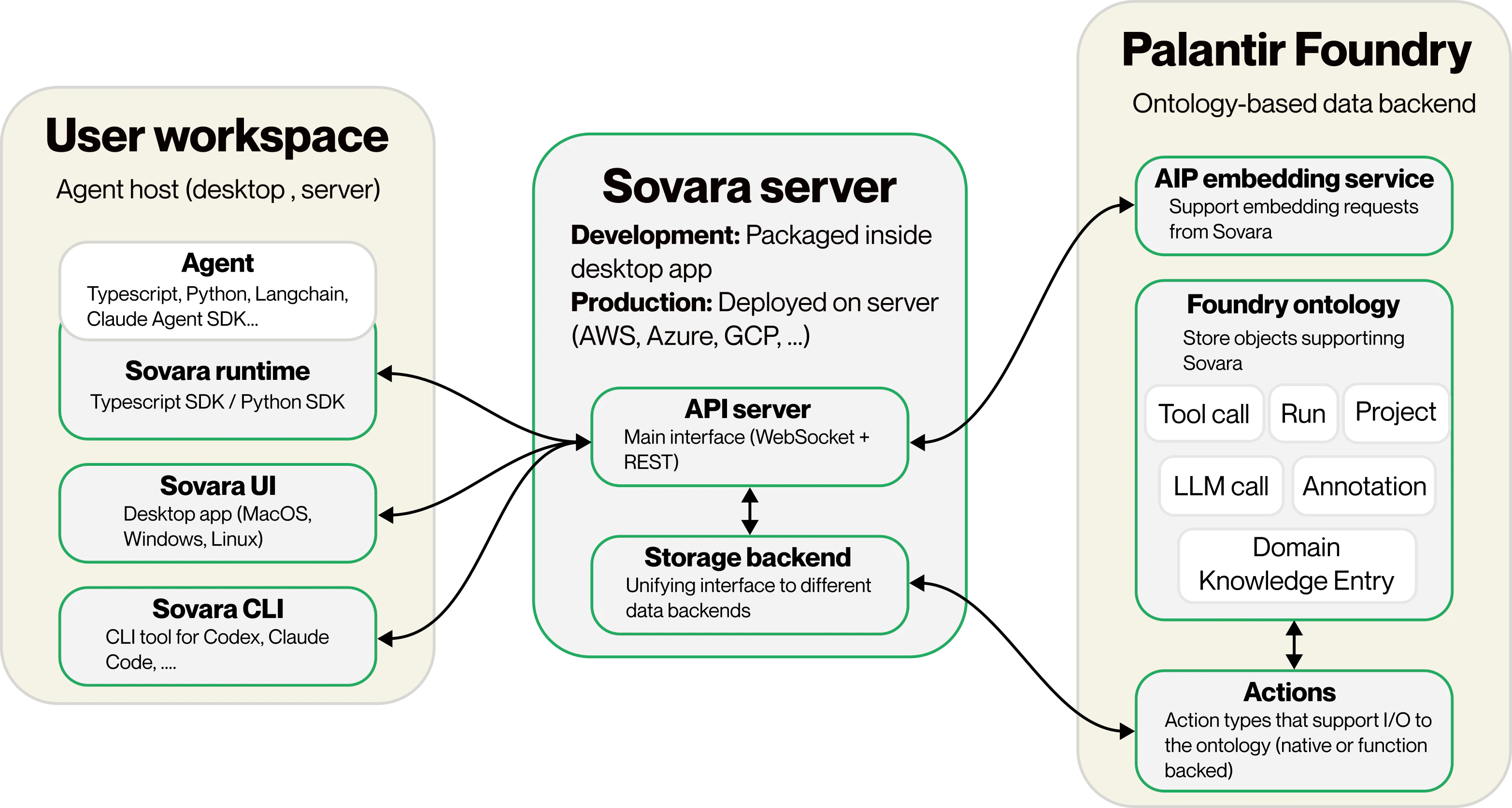
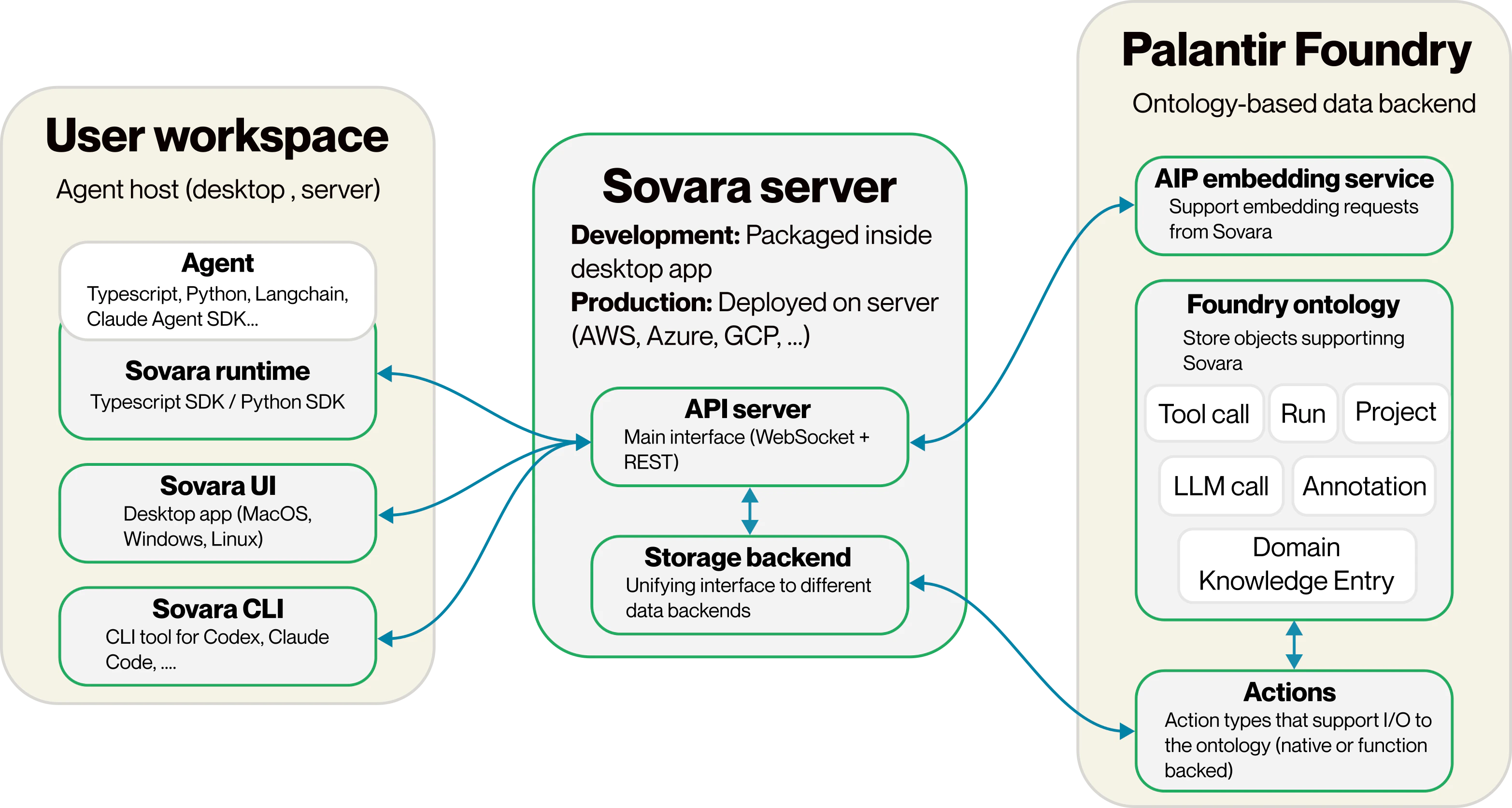
When you select the Palantir backend:- Foundry Ontology stores the Sovara objects used by runs, tool calls, annotations, and project state.
- Ontology Actions and Functions apply Sovara writes to Foundry.
- AIP embedding endpoints create embeddings for Sovara’s internal algorithms and workflows.
- Sovara Server remains the integration boundary. Runners and desktop clients do not write directly to Foundry.
Prerequisites
You need:- A Sovara enterprise server, an enterprise desktop build, or the publicly available desktop app for development, which includes Palantir support natively.
- Access to the Sovara Foundry ontology setup. To get access, contact Sovara Labs.
- Your Foundry host, for example
https://example.palantirfoundry.com. - The ontology API name provided during the Sovara Foundry setup.
- The Foundry branch to use, usually
main. - A Foundry token with access to the Sovara ontology, the required Actions or Functions, and the AIP embedding endpoint.
Configure the Foundry backend
Use the Sovara settings UI when configuring a desktop or interactive server deployment:- Open Sovara Settings.
- Go to the database backend settings.
- Set
Database backendtoPalantir Ontology. - Set
Foundry Hostto your Foundry stack URL, for examplehttps://example.palantirfoundry.com. - Set
Ontology API Nameto the value provided during the Sovara Foundry setup. - Set
Branchto the Foundry branch, usuallymain. - Paste the Foundry token into
Token. - Click
Test connection. - Save the settings.
~/.sovara/config.yaml, use the equivalent
keys:
Configure Palantir embeddings
Sovara can use Palantir as the embedding model vendor. This sends embedding requests through Foundry’s OpenAI-compatible AIP endpoint.- Open Sovara Settings.
- Go to the model settings for embeddings.
- Set the embedding vendor to
Palantir. - Set
Foundry Hostto your Foundry host, for exampleexample.palantirfoundry.com. - Use
text-embedding-3-smallas the model unless Sovara Labs provided a different model name for your Foundry environment. - Paste the same Foundry token into
Foundry token, or use a separate token with AIP embedding access. - Save the model settings.
Verify the setup
After saving both backend and embedding settings:- Connect the Sovara UI, CLI, and agent runners to that server.
- Run a small agent workflow from a connected project.
- Confirm that the run appears in the Sovara UI.
- Queue or create an annotation recommendation and confirm that retrieval uses the configured embedding model.